Why this exists
Greens Drive is designed to protect important documents from accidental deletion. Most users cannot directly delete files to prevent the loss of critical operational records, financial documents, and guest information. However, we recognize that outdated or duplicate files need to be removed to keep the system organized and efficient. This policy ensures document security while providing controlled methods for authorized users to remove unnecessary files.
Who does what
- Corporate Support Center — processes deletion requests submitted via IT Help Desk
- All Team Members — rename files for deletion or submit deletion requests through proper channels
Steps
Submit a deletion request (for all users)
- Click on the file you want to delete
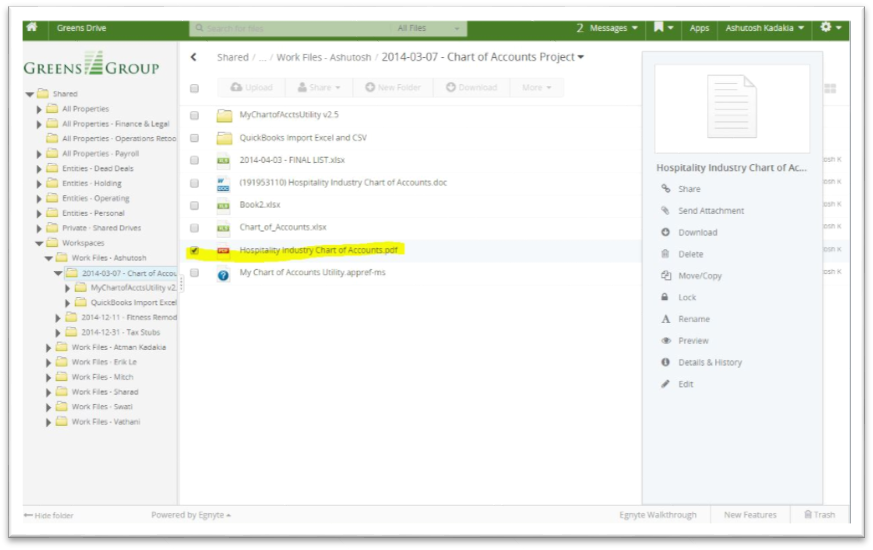
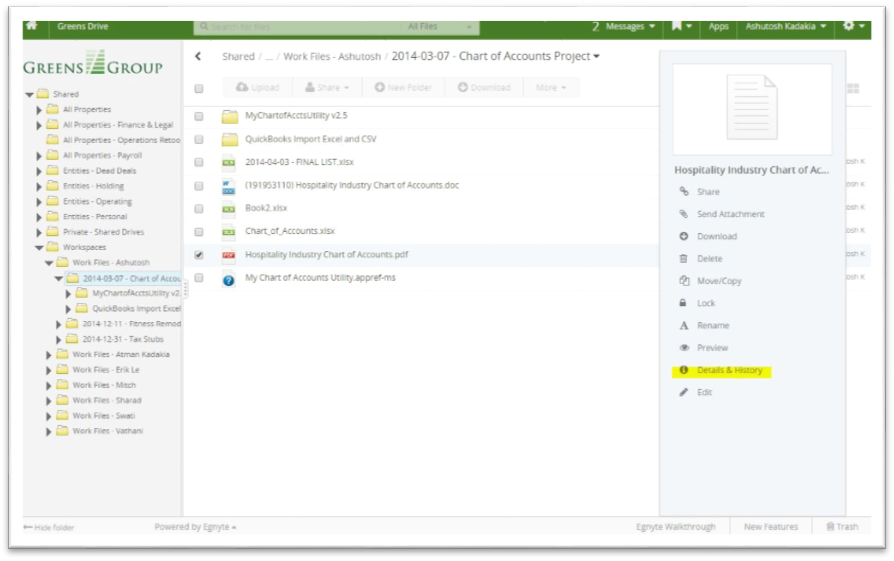
- Click on "Details and history" in the file menu
- Copy the URL from the details panel
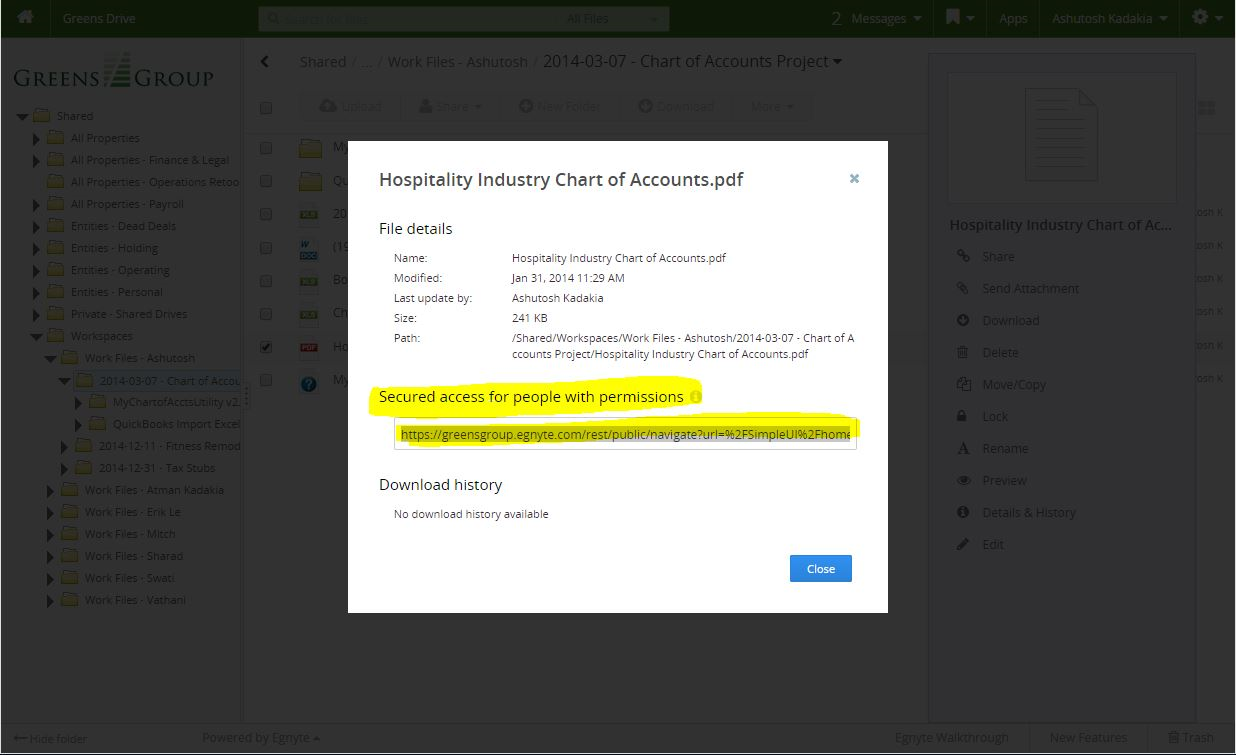
- Email the URL to the IT Help Desk with:
- Subject line: "File Deletion Request"
- The copied URL
- Brief reason for deletion (e.g., "Outdated version" or "Duplicate file")
- Your name and property
- IT will process your request within 2-3 business days and confirm deletion via email
Rules and exceptions
- Only General Managers and Sales team members have Work Files folders with deletion privileges
- Always verify you have the correct file before requesting deletion
- Corporate-level folders and templates cannot be deleted by property-level users